How to Use the GLP-1 Side Effect Journal
The GLP-1 Side Effect Journal is a free, private tracking tool built for people taking GLP-1 medications like Semaglutide or Tirzepatide. No login required. Your data never leaves your device.
What Is This Tool?
Use it to log how you feel each day, spot patterns over time, and walk into your next doctor's appointment with a clear, organized summary — no guessing, no trying to remember weeks of symptoms from memory.
Your privacy, in plain terms
- Your data never leaves your device. There is no account to create, no sign-up required, and nothing is stored on any server.
- Everything is saved locally in your browser, so your information stays completely private.
Getting Started: Your First Three Steps
The first time you open the journal, a short setup wizard walks you through three quick steps. It takes about 30 seconds.
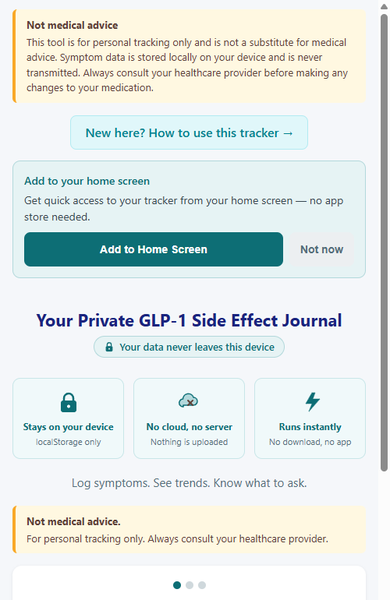
Step 1 of 3 — Your Medication
Choose your medication from the dropdown:
- Semaglutide (injectable)
- Semaglutide (oral)
- Tirzepatide (injectable)
- Other
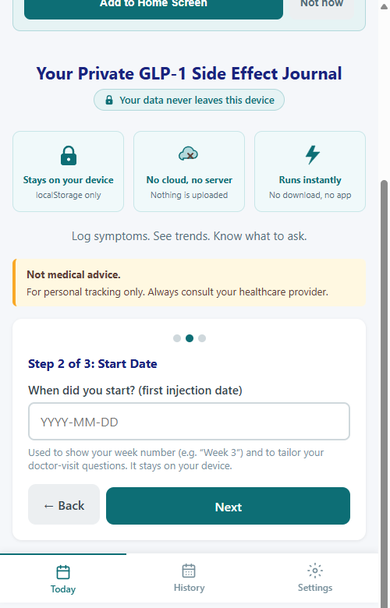
Step 2 of 3 — Start Date
Enter the date of your first dose. The journal uses this to calculate which week of your journey you are on and to tailor the talking points it generates for your doctor visits.
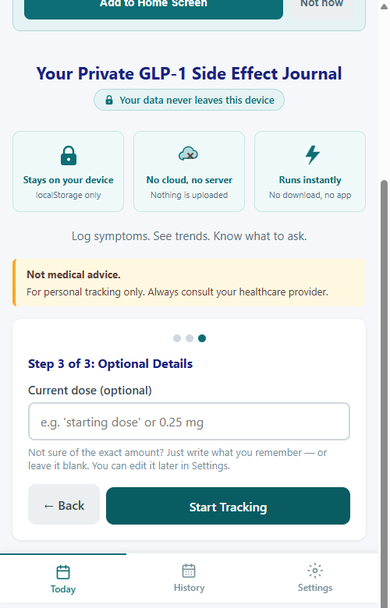
Step 3 of 3 — Optional Details
You can enter your current dose here if you would like, or leave it blank and come back to it later in Settings. When you are ready, tap Start Tracking.
Step 1: Log How You Feel
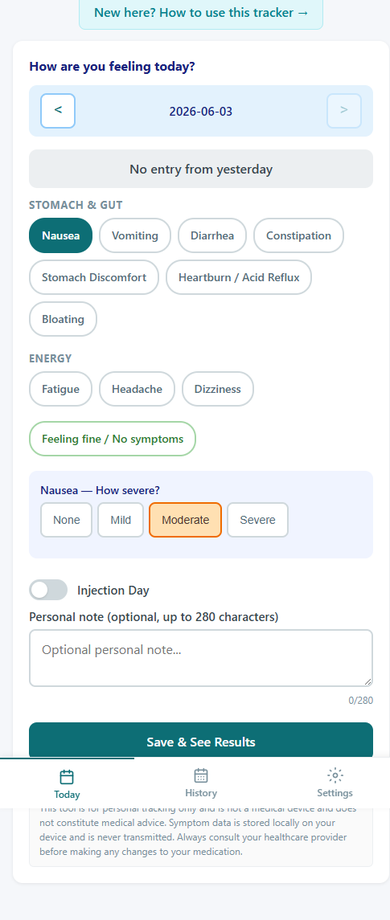
Every day, the Today tab is where you record how you are doing.
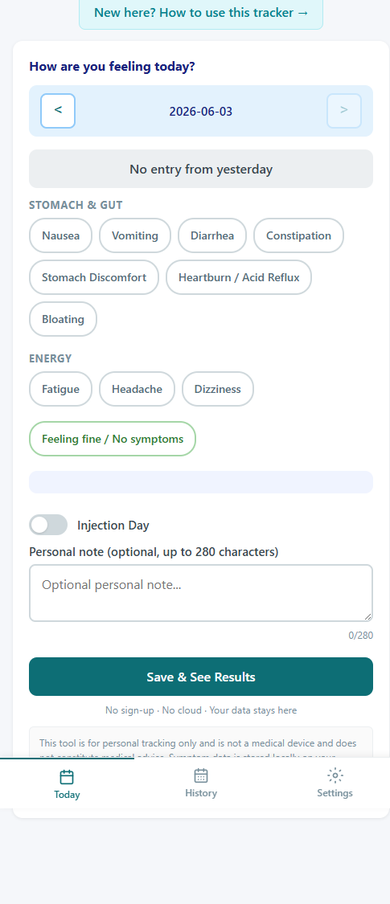
At the top of the screen you will see today's date with arrow buttons on either side (◀ date ▶). If you missed a day, tap the left arrow to navigate back and log it — your history is never locked.
Choosing your symptoms
Tap any symptom chip that applies to you today. Symptoms are grouped into two categories:
- Stomach & Gut: Nausea, Vomiting, Diarrhea, Constipation, Stomach Discomfort, Heartburn / Acid Reflux, Bloating
- Energy: Fatigue, Headache, Dizziness
If you are having a good day with no issues, tap Feeling fine / No symptoms.
Setting severity
After tapping a symptom chip, a severity selector appears. Choose the level that best describes how it felt:
- None — not bothering you
- Mild — noticeable but manageable
- Moderate — affecting your day
- Severe — significantly disruptive
Other fields on this screen
- Injection Day — check this box on the day you take your injection. The journal tracks these against your symptom pattern over time.
- Weight (optional) — enter a number in either lbs or kg using the toggle next to the field. This field is completely optional — if you skip it, everything else saves as normal. Logging your weight here lets you see it alongside your symptom entries in the History tab.
- Personal note — a free-text field (up to 280 characters) for anything you want to remember: what you ate, how much water you drank, or anything your doctor might want to know.
When you are done, tap Save & See Results.
Step 2: See Your Trends and 7-Day Summary
After saving, the results screen gives you an at-a-glance view of the past week.
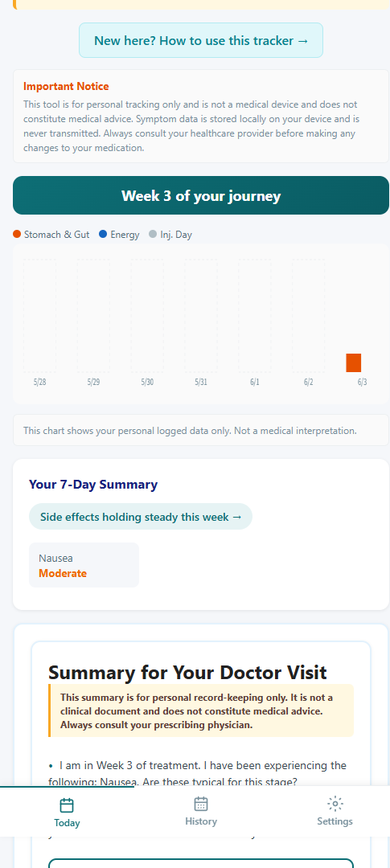
At the top you will see which week of your journey you are on — for example, "Week 3 of your journey."
The 7-day bar chart shows three tracks side by side for each day:
- Stomach & Gut symptom intensity
- Energy symptom intensity
- Injection Day markers
This makes it easy to see whether symptoms tend to cluster around your injection days or spread across the week.
Your 7-Day Summary is a short text block below the chart. It highlights your most frequent symptoms and any notable trends from the past seven days, written in plain language.
Weight log — if you logged your weight today, a single line appears near the bottom of the results screen showing your most recent recorded number and the unit you chose. Tap View trend ↗ to jump to the History tab where you can see how your weight readings have looked over time. If you have not logged any weight yet, this line does not appear.
Step 3: Prepare for Your Doctor Visit
The most useful section on the results screen is Summary for Your Doctor Visit.
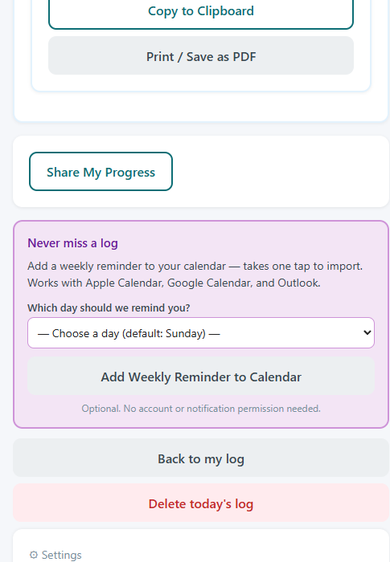
This section automatically writes a set of talking points based on your logged data. A typical summary might read:
You do not need to remember what to say — the journal has already drafted it for you.
Three ways to share your summary
- Copy to Clipboard — paste it into a message, notes app, or patient portal
- Print / Save as PDF — print a copy to bring with you, or save a PDF to your files
- Share My Progress — use your device's native share sheet to send it however you prefer
After reviewing your results, tap Back to my log to return to the Today tab, or use Delete today's log if you need to start that day's entry over.
Step 4: Review Your History
The History tab gives you a bird's-eye view of how you have been feeling over the past three months.
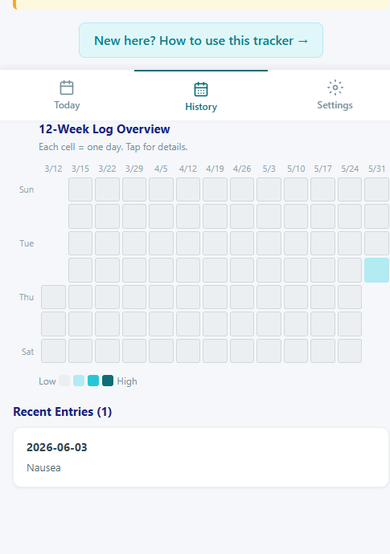
12-Week Log Overview displays a calendar heatmap. Each square represents one day. The color intensity of each square reflects overall symptom load for that day — lighter squares mean fewer or milder symptoms, and darker squares mean more or more intense symptoms.
Tap any square to expand the detail view for that specific date: which symptoms you logged, their severity, whether it was an injection day, and any personal note you left.
Weight trend chart — below the heatmap, a line chart shows how your logged weight readings have changed over time. The chart appears once you have two or more weight entries recorded. If you have only one entry or none, you will see a short note that reads "Log more entries to see your trend." The chart is there to help you track the numbers over time — no interpretation or targets are shown.
Below the weight trend chart, Recent Entries lists your most recent log days in chronological order for a quick text-based review. For any day where you recorded a weight, the number appears next to that date in the list.
Step 5: Settings, Reminders, and Backup
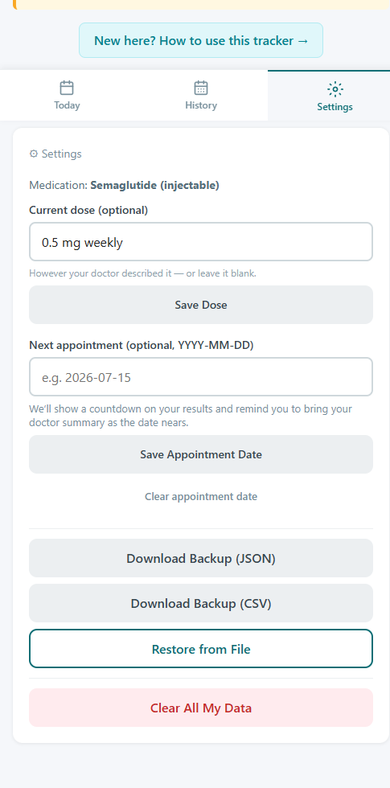
The Settings tab keeps your preferences organized in one place.
Medication and dose
Update your medication type or current dose at any time. Tap Save Dose after making changes.
Next appointment date
Enter your next scheduled appointment (in YYYY-MM-DD format). Once saved, a countdown appears on the results screen reminding you how many days remain. The journal will also remind you to bring your doctor summary when the date is approaching.
Weekly calendar reminder
Under "Never miss a log," select the day or days of the week when you would like a reminder. Tap Add Weekly Reminder to Calendar to add it directly to your Apple, Google, or Outlook calendar. No account login or notification permissions are required — it uses a standard calendar file format that works across devices.
Backing up and restoring your data
Your data is stored locally in your browser, so it is a good habit to back it up periodically, especially before clearing your browser or switching devices.
- Download Backup (JSON) — a full export of all your log data in a structured format
- Download Backup (CSV) — a spreadsheet-friendly version of your log history
- Restore from File — re-import a JSON backup file to recover your data
- Clear All My Data — permanently erases all local data. This cannot be undone.
Quick Questions
Do I need to create an account?
No. The journal works entirely without a login. Your data is stored on your device only and is never sent anywhere.
Can I use this on my phone?
Yes. The journal works on any modern mobile or desktop browser — no app download needed.
Will my data be shared with my doctor automatically?
No. Nothing is sent anywhere automatically. Use the Copy, Print, or Share buttons on the results screen to share your summary in the way that works best for you. You can also read it aloud or show your phone at your appointment.
What if I miss a day?
Use the arrow buttons (◀ ▶) at the top of the Today tab to navigate back to any previous date and log it. You are never locked out of past entries.
Is this a medical app?
No. The GLP-1 Side Effect Journal is a personal tracking tool. It does not diagnose, treat, or provide medical advice of any kind. Always talk with your healthcare provider about your symptoms and any changes to your treatment.
Can I add this to my home screen?
Yes. On the main screen, look for the "Add to Home Screen" banner at the top. Tap it to install a shortcut directly on your device's home screen — no app store required. If you tap "Not now," the banner will not appear again in that browser. On iPhone, use the Share button in Safari and then tap "Add to Home Screen."
Do I have to log my weight?
No. The weight field is completely optional. The journal works exactly the same whether you fill it in or not. If you do log it, your entries will show up in the History tab alongside your symptom records so you can review them over time. The journal does not set goals, make comparisons, or interpret your numbers — it simply stores what you enter.